


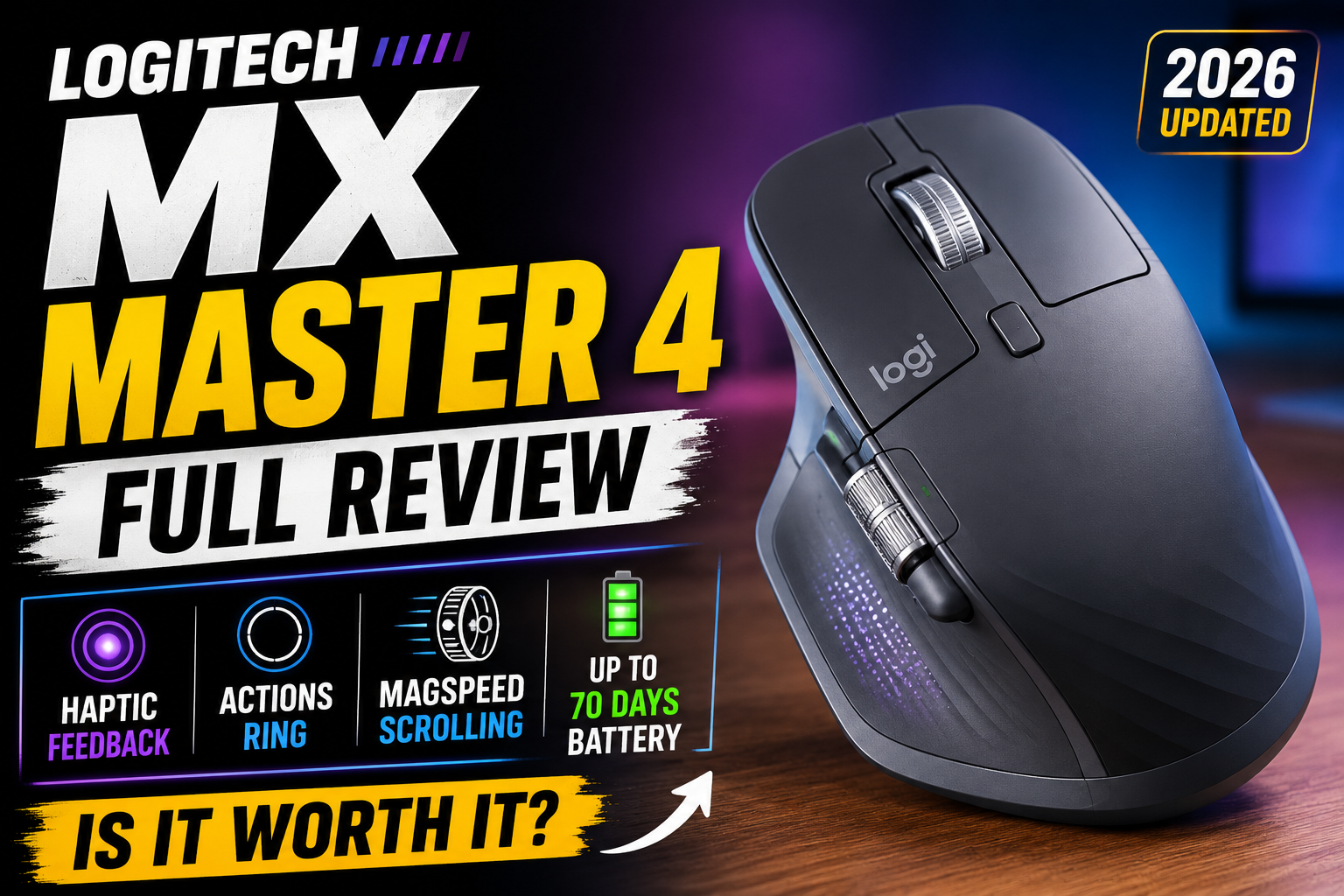
The Logitech MX Master 4 is the newest flagship mouse in Logitech’s popular MX Master lineup, and this time Logitech has gone beyond simply improving ergonomics and scrolling. The MX Master 4 introduces built-in haptic feedback and a new Actions Ring, turning an already feature-packed productivity mouse into something closer to a customizable control center for your computer.
But with its premium positioning, heavier body and reliance on Logitech’s software for many of its smartest features, the big question is simple: Is the MX Master 4 actually worth buying?
After looking at its design, features, connectivity, battery life and productivity capabilities, here’s our full review.
Design: Familiar, but More Refined
At first glance, the MX Master 4 looks unmistakably like an MX Master mouse.
It retains the large, sculpted, right-handed ergonomic shape that made previous generations popular. The mouse is designed for users who spend long hours working at a computer rather than for competitive gamers.
The MX Master 4 measures 128.2 × 88.4 × 50.8 mm and weighs around 150 grams. It is therefore a substantial mouse, especially when compared with modern lightweight gaming mice.
The additional weight isn’t necessarily a disadvantage for productivity. In fact, it gives the mouse a reassuringly solid feel when moving it across a desk.
However, if you’re coming from a 50–70g gaming mouse, the MX Master 4 will feel heavy.
The Biggest New Feature: Haptic Feedback
The most interesting addition is the Haptic Sense Panel.
Unlike a traditional mouse, the MX Master 4 can provide physical vibration feedback when certain actions happen.
For example, haptic feedback can be used when:
- Navigating the Actions Ring
- Activating shortcuts
- Performing certain gestures
- Switching devices
- Completing supported actions
- Using supported applications
The haptic feedback can also be customized through Logitech’s software.
This sounds like a gimmick at first, but it becomes more interesting once you actually consider how it could be used.
Imagine adjusting an object in a design application and feeling a subtle vibration when it aligns with a guideline. Logitech has also added native haptic support for Windows 11, including actions such as snapping and resizing windows.
That gives the MX Master 4 something most productivity mice simply don’t have.
Actions Ring: A Smart Shortcut Menu
The second major addition is the Actions Ring.
Press the Haptic Sense Panel and a circular shortcut interface appears on your screen.
You can configure shortcuts for frequently used tasks instead of repeatedly moving your mouse around the screen or remembering keyboard combinations.
For example, you could configure:
Photoshop
- Brush tools
- Zoom
- Undo
- Redo
Premiere Pro
- Timeline controls
- Playback
- Editing shortcuts
- Zoom
Excel
- Frequently used commands
- Calculations
- Navigation shortcuts
Windows
- Screenshot
- File Explorer
- Media controls
- Desktop switching
- AI applications
Logitech says its testing showed up to 33% faster mouse actions and reduced repetitive mouse movements with Actions Ring, although actual results depend on how you configure and use it.
For power users, this could become one of the most useful features of the mouse.
MagSpeed Scroll Wheel Is Still Excellent
The famous MagSpeed electromagnetic scroll wheel returns, and that’s good news.
It provides two modes.
Ratchet Mode
This provides precise, individual scrolling steps.
It’s useful for:
- Documents
- Excel spreadsheets
- Websites
- Lists
- Coding
Free-Spin Mode
Give the wheel a quick flick and it can scroll through huge amounts of content extremely quickly.
Logitech claims speeds of up to 1,000 lines per second in free-spin mode.
For anyone who works with long documents or large spreadsheets, this is still one of the best scroll-wheel implementations available.
Horizontal Scrolling
The dedicated thumb wheel is another feature that separates the MX Master 4 from conventional mice.
It allows you to scroll horizontally without holding Shift or using a keyboard shortcut.
This is particularly useful when working with:
- Excel
- Video-editing timelines
- Large Photoshop projects
- Wide documents
- Large spreadsheets
Once you get used to it, going back to a normal mouse can feel surprisingly restrictive.
Precision and Sensor Performance
The MX Master 4 uses Logitech’s Darkfield high-precision sensor, with sensitivity ranging from 200 to 8,000 DPI in 50-DPI increments.
The sensor is designed for accurate tracking across a wide variety of surfaces, including glass with the appropriate minimum thickness.
For productivity work, tracking is more than sufficient.
You don’t need an extremely high polling rate or ultra-lightweight sensor implementation for Excel, Photoshop, programming or browsing, and that’s exactly where the MX Master 4 is designed to excel.
Quiet Clicks
The MX Master 4 also features Logitech’s Quiet Click technology.
Logitech says the mouse provides up to 90% less click noise compared with the MX Master 3.
This makes it particularly suitable for:
- Offices
- Libraries
- Shared workspaces
- Meetings
- Working at night
The clicks aren’t completely silent, but they’re considerably less distracting than traditional mouse switches.
Connectivity
The MX Master 4 supports both:
- Bluetooth Low Energy
- Logi Bolt wireless receiver
It can connect to up to three devices, allowing you to use one mouse with a desktop, laptop and another compatible device.
Switching between devices is particularly convenient if you regularly work across multiple computers.
The wireless range is rated at up to 10 metres, depending on the environment and computer setup.
Battery Life
Battery life is one of the MX Master 4’s strongest areas.
Logitech rates the rechargeable 650mAh battery for up to 70 days on a full charge.
And if you forget to charge it, a short charging session can get you back to work quickly.
Logitech claims approximately:
1 minute charging → up to 3 hours of use
The mouse charges through USB-C.
For a productivity mouse, that’s excellent.
Logi Options+ Makes the Mouse Even Better
The hardware is only part of the MX Master 4 experience.
The other major component is Logi Options+.
With the software, you can configure buttons differently for different applications.
For example:
| Application | Possible customization |
|---|---|
| Chrome | Tab switching |
| Photoshop | Brush size / tools |
| Premiere Pro | Timeline controls |
| Excel | Spreadsheet shortcuts |
| Windows | Screenshots / desktop switching |
| ChatGPT | Open AI assistant |
This application-specific customization is one of the main reasons the MX Master series remains so popular among professionals.
What About Gaming?
This is not a gaming mouse.
The MX Master 4 weighs around 150g, and its report rate is 125Hz.
That’s perfectly adequate for normal desktop use but far behind modern competitive gaming mice.
If you primarily play:
- Valorant
- Counter-Strike
- Apex Legends
- Fortnite
- Overwatch
you should buy a dedicated gaming mouse.
For casual gaming, strategy games and slower-paced titles, however, the MX Master 4 is perfectly usable.
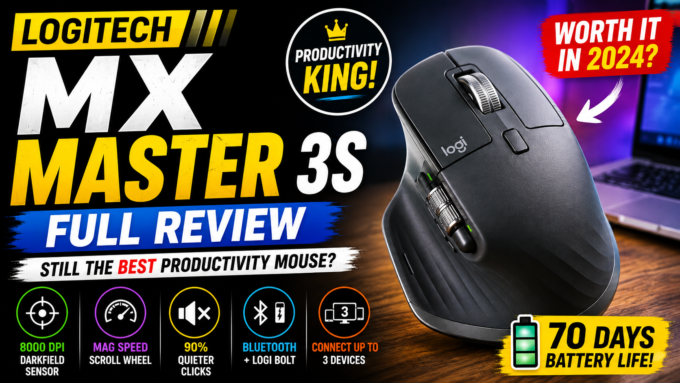
MX Master 4 vs MX Master 3S
If you already own an MX Master 3S, the upgrade decision is less obvious.
The basic formula remains familiar:
Ergonomics + MagSpeed + thumb wheel + multi-device support + excellent battery life
The MX Master 4 adds:
- Haptic Sense Panel
- Customizable haptic feedback
- Actions Ring
- Updated connectivity
- Refined materials/design
- Additional software integrations
So the MX Master 4 is more of an evolution than a complete redesign.
If your MX Master 3S is still working perfectly, you don’t necessarily need to upgrade.
But if you’re buying your first premium productivity mouse, the MX Master 4 makes more sense.
Is the MX Master 4 Comfortable for Long Hours?
Absolutely.
This is arguably the biggest reason to choose it.
The large ergonomic shape supports the palm while the thumb naturally rests around the side controls and horizontal wheel.
For people who spend hours:
- Writing
- Coding
- Editing
- Browsing
- Working with spreadsheets
- Designing
the MX Master 4 is much more focused on long-term comfort than an ultra-light gaming mouse.
The only major ergonomic limitation is that it’s designed for right-handed users.
Who Should Buy the MX Master 4?
👍 Buy it if you are:
- A programmer
- A content creator
- A video editor
- A graphic designer
- An office professional
- A student who spends long hours on a computer
- An Excel-heavy user
- Someone who uses multiple computers
- Someone who values customization
- Someone who wants excellent scrolling
👎 Skip it if you:
- Mainly play competitive games
- Want an ultra-light mouse
- Are left-handed
- Don’t need customizable controls
- Want a budget mouse
- Already have an MX Master 3S and don’t care about haptics
Final Verdict
The Logitech MX Master 4 is an outstanding productivity mouse, but its appeal isn’t about raw specifications.
It’s about the complete experience.
The ergonomic shape makes long working sessions comfortable. The MagSpeed wheel makes scrolling through large documents incredibly easy. The thumb wheel is excellent for horizontal navigation, while multi-device connectivity makes switching between computers simple.
The new Haptic Sense Panel and Actions Ring are the real differentiators. They’re not essential for everyone, but for power users they can turn frequently repeated actions into quick, tactile shortcuts. Logitech has also expanded haptic support into Windows 11, giving the feature more potential beyond Logitech’s own software.
The biggest drawbacks are the 150g weight, right-handed-only design, 125Hz report rate and premium price.
⭐ Our Rating: 9/10
| Category | Rating |
|---|---|
| Design | ⭐⭐⭐⭐⭐ |
| Comfort | ⭐⭐⭐⭐⭐ |
| Scrolling | ⭐⭐⭐⭐⭐ |
| Haptic Feedback | ⭐⭐⭐⭐½ |
| Customization | ⭐⭐⭐⭐⭐ |
| Battery Life | ⭐⭐⭐⭐⭐ |
| Connectivity | ⭐⭐⭐⭐½ |
| Gaming | ⭐⭐⭐ |
| Value for Money | ⭐⭐⭐⭐ |
| Overall | 9/10 |
Verdict: Highly Recommended
If your computer is primarily a productivity, creative-work or professional machine, the MX Master 4 is one of the most feature-rich mice you can buy.
If you’re a competitive gamer, however, spend the money on a dedicated gaming mouse instead.
The MX Master 4 isn’t trying to be the fastest mouse on your desk. It’s trying to be the mouse that makes everything you do on your computer easier.
- best mouse 2026
- Bluetooth mouse
- ergonomic mouse
- hardware review
- Logi Bolt
- Logitech mouse
- Logitech MX Master 4
- Logitech MX series
- Logitech Options+
- Mac accessories
- MagSpeed scroll wheel
- mouse for coding
- mouse for video editing
- MX Master 4 review
- office peripherals
- PC accessories
- productivity mouse
- tech gadgets
- USB-C fast charging
- wireless mouse







Leave a comment